I know I promised many people I’d put this up, so here it is – the guide to configuring your laptop to send files to the printer in the NIE library, so you don’t have to book a computer just to print that one page of work.
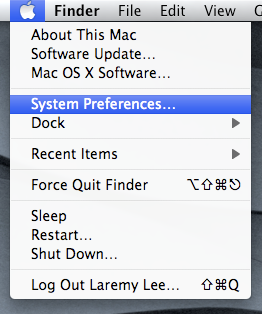
- Go to ‘System Preferences’.
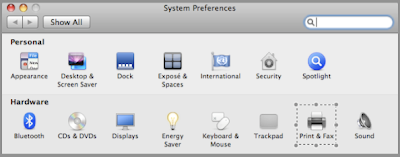
- Click on ‘Print and Fax’.
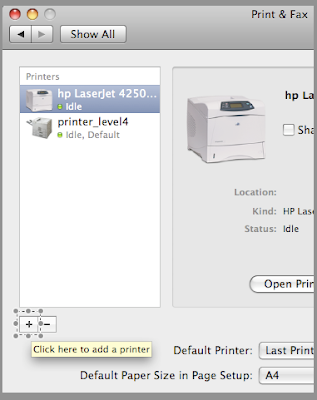
- Click on the ‘Plus’ sign (+) to add a new printer.
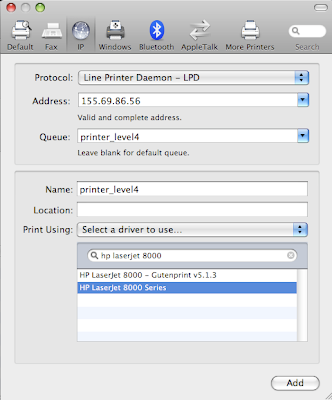
- Input the following values:
- Protocol: Line Printer Daemon – LPD
- Address: 155.69.86.56
- Queue: printer_level4
- Name: printer_level4
- Print Using: HP LaserJet 8000 Series.
Click ‘Add’.
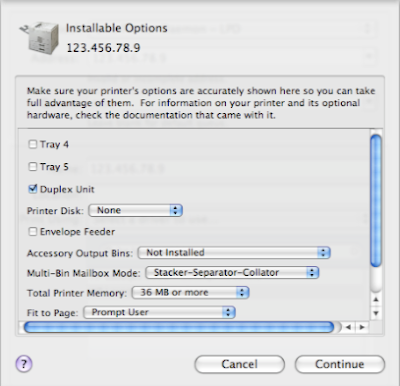
- Place a check next to the ‘Duplex Unit’ option, and change the Total Printer Memory option to ’36MB or more’. Click ‘Continue’.
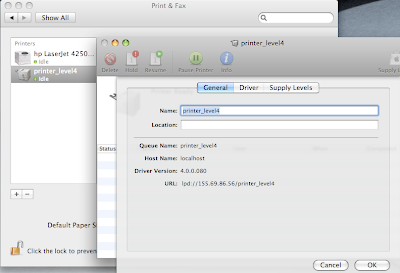
- Your printer should’ve been added. To confirm, double-click the ‘printer_level4’ icon, click on the blue ‘Info’ button and check to see if the values match what you see in the picture.
- To print: Go to File -> Print or hit Cmd-P to send your file to the printer.
- Go to the release station, and type in your user name. It’s usually the name which you use to log in to your computer, but without spaces. Mine is Laremy Lee (c.f. Step 1), so the user name I input is ‘laremylee’.
Hope this helps!
